Currently, you can move IP blocks between **Dedicated Servers** only. IP blocks cannot be moved between virtual servers.
We provide two types of IP subnets: **Fixed** and **Failover**. **Fixed subnets** are routed directly to your server, and you do not need to reserve any addresses in the block for broadcast or gateway purposes. Although the term *fixed* is used, **this does not mean the block is permanently tied to a single server**. If you have two or more compatible services, you can move a fixed IP block between them as needed. **Failover subnets** are typically placed into a **vRack**, which allows the IPs to be attached to multiple servers at the same time. Unlike a fixed IP block, which can only be routed to a single server at once, failover IP blocks are designed for **high‑availability (HA)** setups. Failover subnets can only be assigned to servers that are compatible with HA/vRack networking. #### Move an IP Block From the NoC, navigate to the server that the IP block is currently assigned to. Open the **Network** tab and wait for the page to fully load. Just below the header, you’ll see the IP block listed along with an option to **move the block to another server (Move IP Block)** [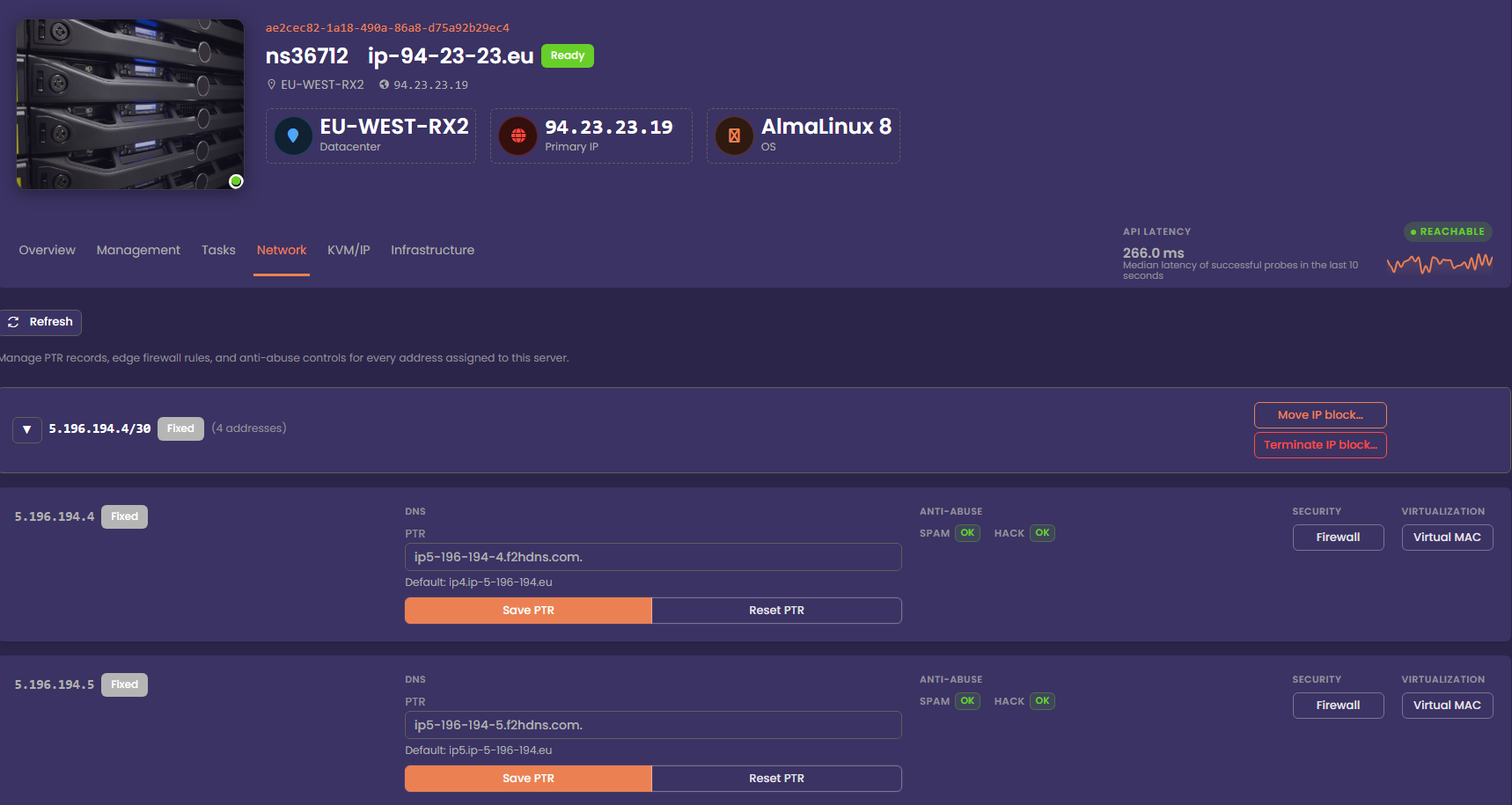](https://docs.f2h.cloud/uploads/images/gallery/2026-05/noc-moveipblock.png) To move the IP block to another compatible service, click **Move IP Block**. In the modal that appears, select the server you want to attach the IP block to, then confirm the change. The dropdown will only display servers that are eligible to receive the IP block. In most cases, this means other servers within the same region, though they do not need to be in the same datacentre.You cannot move an IP Block with vMac's assigned to it. Delete any vMac's before attempting to move an IP Block
[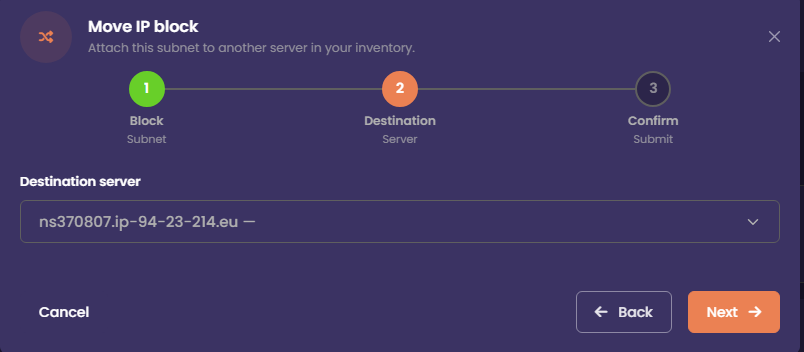](https://docs.f2h.cloud/uploads/images/gallery/2026-05/noc-moveipblock-1.png) After you confirm the move request, a message will appear indicating that the IP block migration has been received. The IP block will be moved to the selected server within **5 minutes**, and it will then appear under the **Network** tab for that server. The associated IP Addon in your client area will also be updated to reflect the new service. #### Monitor Progress The migration task will appear on the server that is losing the IP block. Once the block has been successfully moved to the receiving server, the task will update to **Completed**. At that point, the **Network** tab on the receiving server will display the IP block. [](https://docs.f2h.cloud/uploads/images/gallery/2026-05/noc-moveipblock-tasks.png)