Unblock IP addresses (SPAM and HACK)
Overview
We register and operate public IP ranges for customer services. When an address sends mail or traffic that looks like spam, bulk abuse, or compromised-system behaviour, blocklists and peers can flag our whole network, not just one server.
So we run automatic protections and sometimes restrict outgoing mail (for example, blocking SMTP on port 25 from that address) until the problem is understood and fixed. That protects you, our other customers, and deliverability for everyone on our platform.
SPAM-type blocks usually mean our filters saw messages leaving your server that scored like junk: content, volume, bad list hygiene, weak authentication, or a compromised mailbox/script relaying mail you did not intend.
HACK-type blocks mean the traffic pattern looks like abuse from a broken or attacked machine: malware, open relay abuse, scanning, brute-force egress, or similar — not “we didn’t like your newsletter wording” alone.
Before you click “Unblock”
Unblocking is not a reset button. If the cause is still there, you will often be blocked again, sometimes longer or with stricter review.
If this were flagged as SPAM
- Stop mail leaving that server — stop or disable the MTA (Postfix, Exim, Sendmail, etc.) until you know what happened.
- Drain the queue — inspect and clear stuck mail so nothing fires out the moment you lift the restriction.
- Trace the Message-ID (from our alert email, if we sent one) in your logs to see which messages triggered the block.
- Fix the cause — compromised account, misconfigured site form, newsletter tool without unsubscribe, open relay, weak authentication, missing PTRs, etc.
- Only then, use Unblock SPAM in the NOC.
If this were flagged as security abuse
- Stop the abusive activity — isolate the host if needed.
- Patch, rotate passwords/API keys, remove malware, close exposed services, and review firewall rules.
- Only then use Unblock HACK (or the equivalent security unblock action) in the NOC.
Unblock in the NOC (IP Address Management)
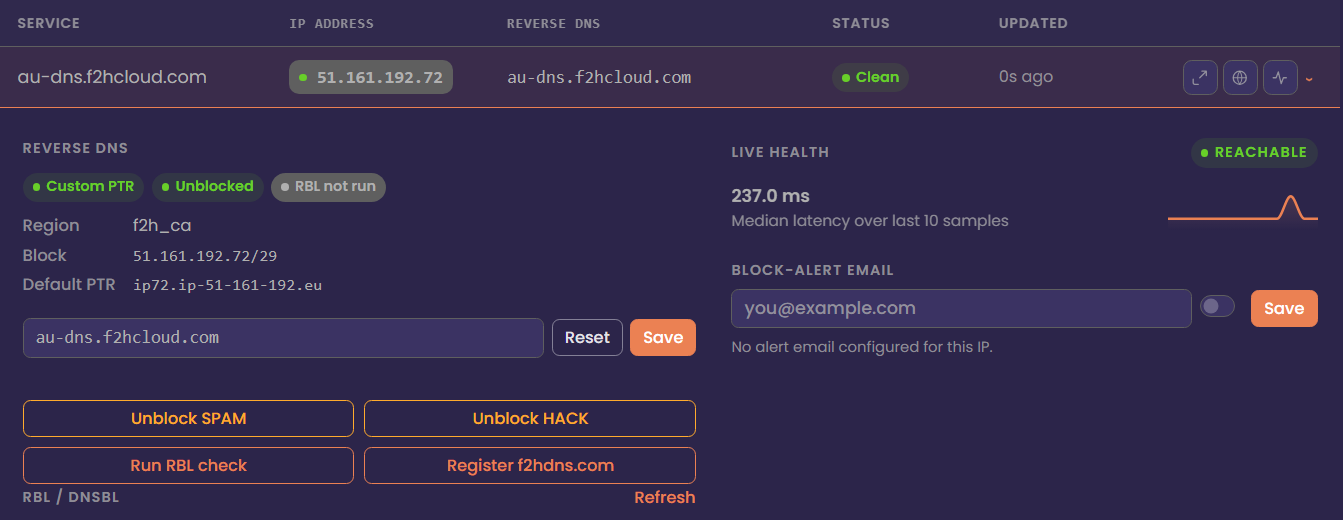
- Sign in to the NOC and open IP Address Management.
- Find the IPv4 (search, filters, or quick search).
- Expand the row.
- Choose Unblock SPAM or Unblock HACK as appropriate.
- Wait a few minutes; network changes are not always instant.
You can only unblock addresses that belong to your account. If a button is missing or the request fails, the IP may not be in your inventory, or the block type may require a support ticket with evidence of remediation.
What you should do so you don’t get blocked again
Mail authentication & identity
- Set correct SPF, DKIM, and DMARC for the domains you send from.
- Set PTR (reverse DNS) to a hostname that matches forward DNS (A/AAAA) for the same IP — see your PTR guide.
- Prefer authenticated submission (587 / 465)** with real credentials**, not anonymous relay paths.
Content & sending behaviour (why “legitimate” mail still trips filters)
- Avoid spammy patterns: all caps subjects, heavy promo language, many links vs little real text, embedded scripts, “too good to be true” offers.
- For any bulk or marketing mail: clear From, honest Subject, and a working unsubscribe for people who didn’t ask or changed their mind.
- Warm up new IPs and don’t blast cold lists from a fresh server.
Volume & operations
- Very high outbound volume: use dedicated sending IPs, keep abuse@ (or similar) monitored on that domain/range, and don’t mix many unrelated brands on one sending identity unless you know the risk.
After you unblock
- Send a small test and check headers and blocklist/diagnostic tools.
- If you’re blocked again quickly, assume remediation was incomplete — do not unblock in a loop without fixing logs and queue first.
If you think it’s a mistake
If you’re sure the traffic was legitimate and authentication and content follow normal standards, open a support ticket with:
- The IP
- Approximate time of the block
- Sample message headers (or Message-ID from our alert) for the mail we classed as problematic
We’ll review whether it was a false positive and what to adjust.