
Order & Configure vRack With Private Networking
vRack Overview
vRack is a private Layer‑2 networking feature that allows you to interconnect multiple servers across the First2Host network using an isolated, non‑routed VLAN. It behaves like a virtual switch that spans racks, datacentres, or even regions (depending on your deployment), giving your servers a secure and dedicated internal network.
Core Characteristics
-
Layer‑2 private network: vRack operates at Layer 2, meaning your servers appear to be on the same virtual switch regardless of their physical location.
-
Isolated VLAN per customer: Each vRack is assigned a unique VLAN ID, ensuring traffic isolation from other customers.
-
No public routing: Traffic inside the vRack never touches the public internet. It is not NATed, filtered, or rate‑limited.
-
Supports IPv4 and IPv6: You can assign private IPv4 ranges (e.g., 10.0.0.0/24) or IPv6 ULA ranges to your internal network.
-
Cross‑server communication: Ideal for clusters, load balancers, database backends, storage nodes, and any architecture requiring east‑west traffic.
How vRack Works
When a vRack is ordered and attached to your server:
-
A private interface is created: Usually named
eth1orensXDepending on the OS and NIC enumeration. -
A VLAN tag is applied: Your server receives a dedicated VLAN ID that isolates your private network.
-
You assign your own private IPs: We do not configure private addressing for you — you choose the subnet and configure it inside the OS.
-
Traffic flows only between servers in the same vRack: No routing to the public interface occurs unless you explicitly configure it.
Order vRack
You can order a vRack when you have two or more High Availability–compatible servers in your account. Servers that support High Availability are labelled “HA”.
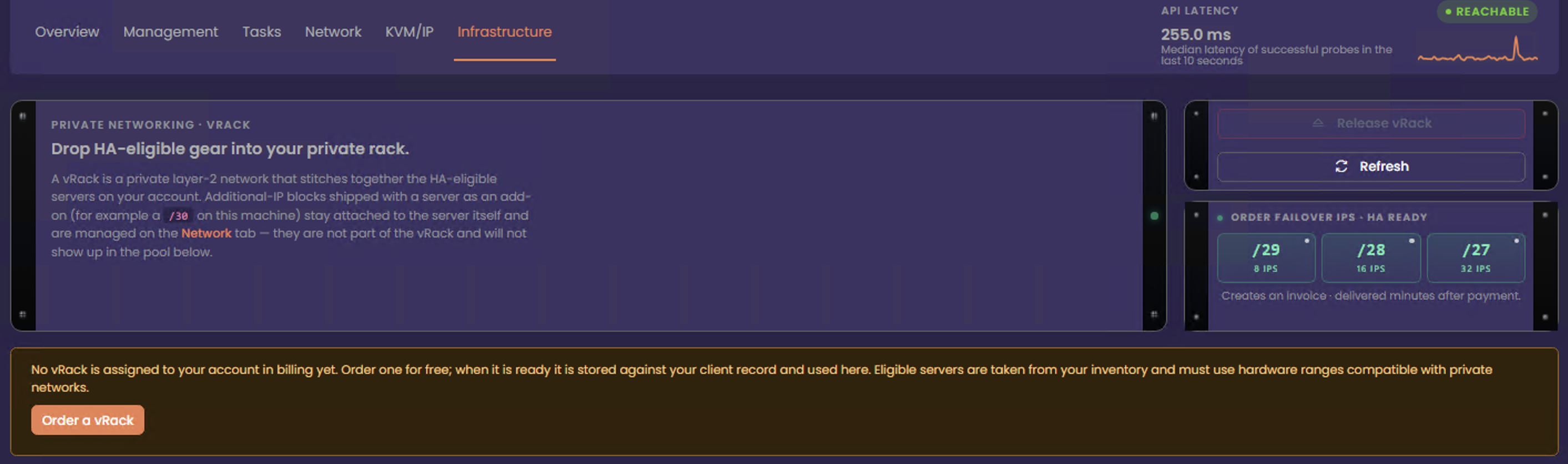
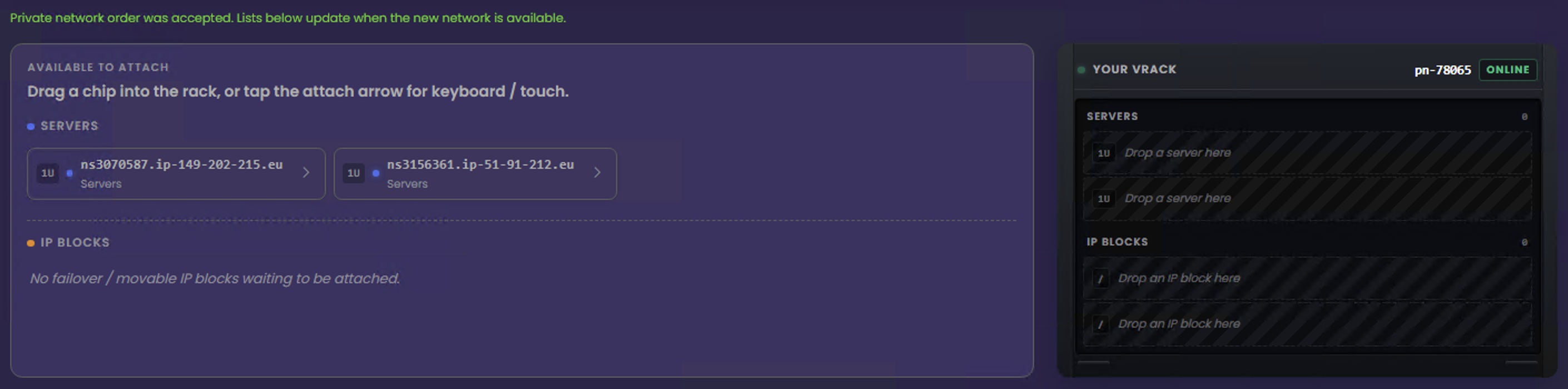
Your vRack order is delivered immediately. Your vRack number is shown on the right, and the eligible services that can be added to the vRack are listed on the left. To use vRack, add the servers and, optionally, any public IPv4 blocks available to move into the vRack. Only failover IPs can be moved to your vRack, and only failover IPs will be displayed here.
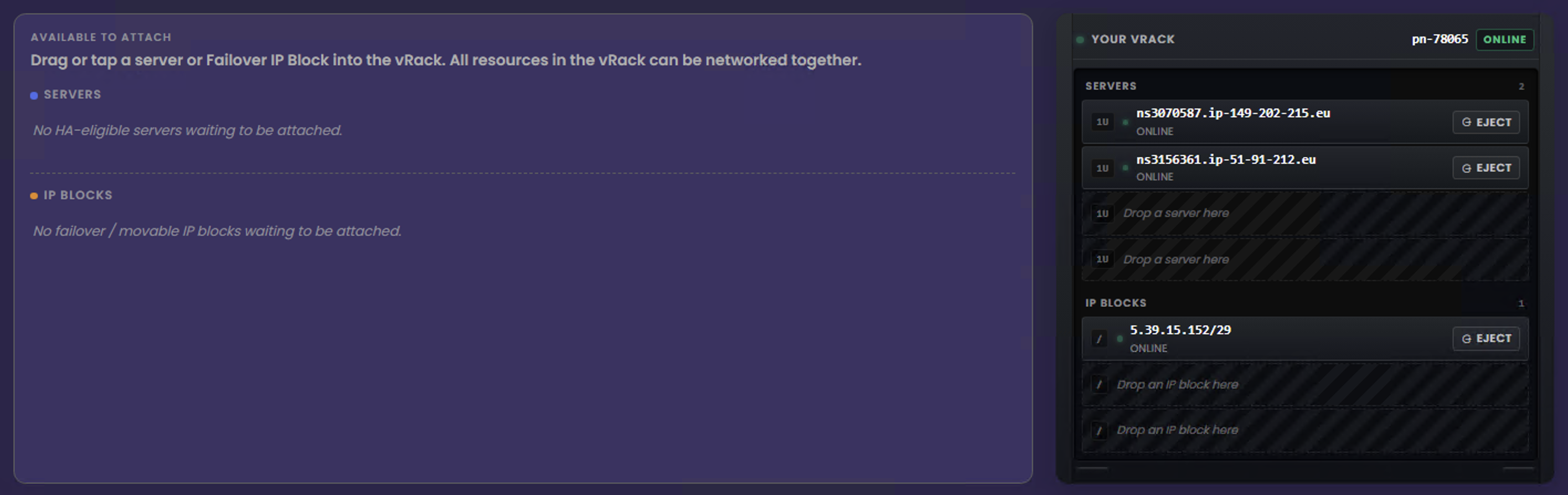
vRack Ready
Once you’ve added your infrastructure to your vRack, we will link your resources together on the private network. However, you must still configure the network settings inside your servers.
- Configure private networking in vRack
- Configure Failover IPs in vRack