
Bulk Update PTR Records
Overview
Use Bulk PTR update when you need the same kind of change on many IPv4 addresses at once — for example, after a migration, when standardising hostnames for mail servers, or aligning reverse DNS across a range. Single-address changes can stay in the normal row editor or PTR modal.
Before you start
- Each PTR must be a valid FQDN (for example
mail.example.com, not a single word without a domain). - Best practice: the hostname you set should have forward DNS (usually an A record) pointing to that same IP, so forward and reverse match.
- Only IPs that appear under your account in IP Address Management can be updated. Anything else is rejected as not yours.
- Maximum 500 IP → hostname pairs per batch. If you have more, split into multiple runs.
Open the bulk tool
- Sign in to the NOC.
- Open IP Address Management.
- Click Bulk PTR update (toolbar at the top of the main table).
Step 1 — Compose
- In the editor, paste one pair per line.
- On each line, put the IPv4 first, then the hostname, separated by a space, tab, or comma.
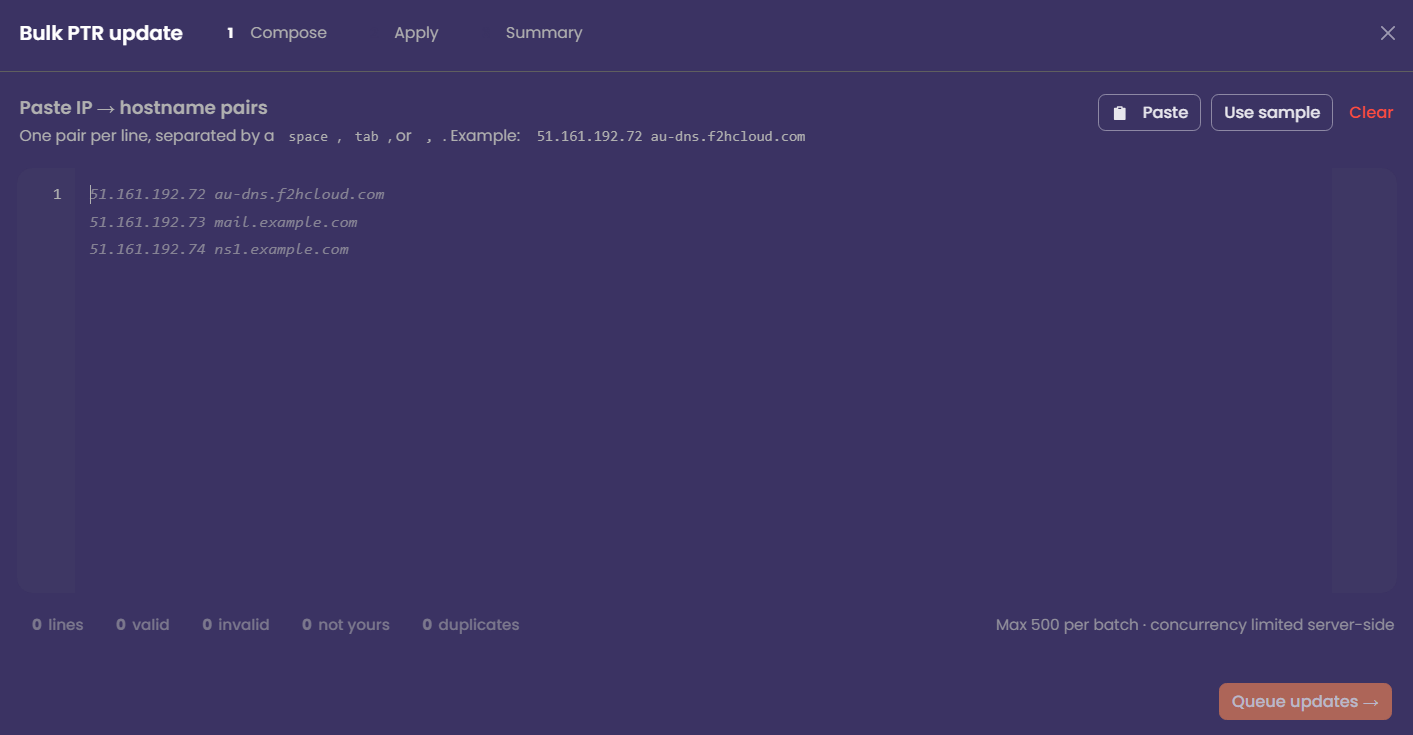
Example:
203.0.113.10 mail.example.com
203.0.113.11 smtp.example.com
203.0.113.12,ns1.example.net- Use Paste if you are copying from a spreadsheet or text file. A sample can show the expected shape if you are unsure. Clear wipes the editor.
- Watch the line counts at the bottom: valid, invalid, not yours, duplicates.
- Fix invalid lines (bad IP or bad hostname shape).
- Remove or correct lines marked not yours.
- Duplicates: only one update per IP should win; clean extra lines if the count surprises you.
- When you have at least one valid owned line, and you are ready, continue to the next step (Queue updates or equivalent).
Step 2 — Apply
The NOC queues each change and applies it with limited concurrency (server-side). You will see:
- A progress bar and counts for queued, running, succeeded, and failed.
- Optionally cancel remaining if you need to stop mid-run.
Do not close the browser tab until the run finishes unless you accept that some rows may still be in flight.
Step 3 — Summary
Review updated, failed, and cancelled counts and duration.
- Retry failed only — runs again for lines that errored (after you fix the underlying issue if needed).
- Copy failed as CSV — handy for support tickets or a second attempt in a spreadsheet.
- Close when you are done.
Verify
PTR and DNS propagate at different speeds everywhere. After a successful run:
- Use your usual reverse DNS lookup (or
dig -x/ online checker) on a few addresses. - Confirm A records still match the names you set.
Common issues
Tips
- Sort and dedupe your source file before pasting to avoid duplicate IP lines.
- For a cutover, update forward DNS first, then bulk PTR, or do both in close sequence and recheck.
- Keep a copy of the file you pasted — the summary’s export CSV is best for failures, not always a full audit of successes.